This is a sample paragraph on my webpage. ``` 3. Copy the second block of code and paste it immediately after the
opening tag. For example, in the following sample HTML code, you would paste your second Google Tag Manager code snippet immediately after the opening HTML tag. Note that the following example uses 'GTM-N2\*\*\*\*\*G,' but you must replace the ID with your container ID. ```This is a sample paragraph on my webpage.
``` 4. (Optional) Test your website by entering your website's link and then clicking **Test**. 5. Then click the **OK** button. **Note:** If you are using a web framework, there may be an easier way to install the GTM tag. For example, [Next.js](http://Next.js) provides a custom integration for GTM: [Google Tag Manager.](https://nextjs.org/docs/app/guides/third-party-libraries#google-tag-manager) This adds the code snippets to your website. Next, we use Google Tag Manager to set up and manage tags. 2. ## Set up and Manage Tags in Google Tag Manager For this guide, we will be creating 5 tags for the Trigger Impressions, Trigger Event, Set Attributes, Set UserId, and the Initialize actions: * **Initialize**: Set up the Personalize Edge SDK for your website to enable dynamic personalization. * **Trigger Impressions**: Captures and tracks when a personalized experience is displayed to users. * **Trigger Event**: Records specific user interactions, such as clicks or conversions, to inform personalization strategies. * **Set Attributes**: Sends user attributes to Personalize, allowing for tailored content based on user profiles. * **Set UserId**: Associates a unique identifier when an unknown user becomes a known user after logging in with a user. ### Set up the tag for Initialize action Use the following steps to set up the tag for the Initialize action in GTM. 1. In the **Workspace** tab, click **Tags** to open the dashboard. 2. In the **Tags** section, click the **New** button to create a new tag. 3. Replace Untitled Tag with the name of your tag (for example, 'Initialization Tag'). 4. In the **Tag Configuration** section, 1. Click the **Choose a tag type to begin setup** area.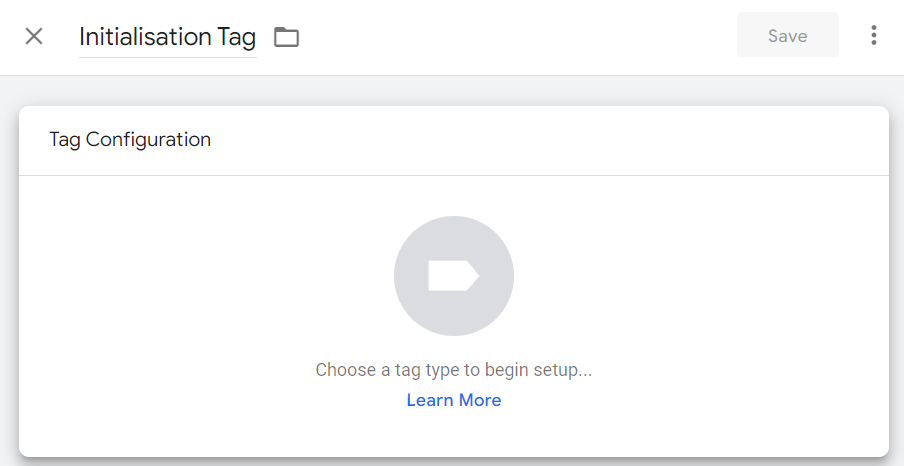 2. Click **Discover more tag types in the Community Template Gallery** to open the **Import Tag Template** page. 3. From the **Community Template Gallery**, search and select **Contentstack Personalize Actions** template.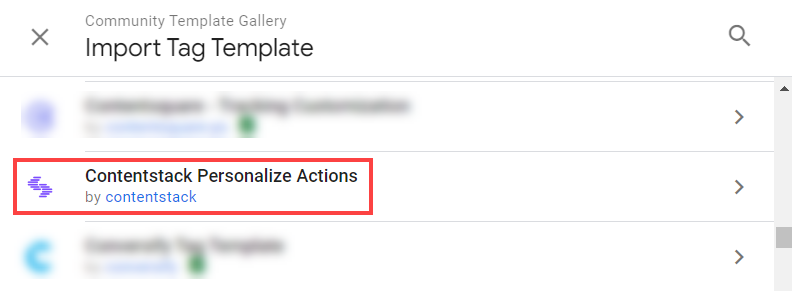 4. Click the **Add to workspace** button and then click the **Add** button.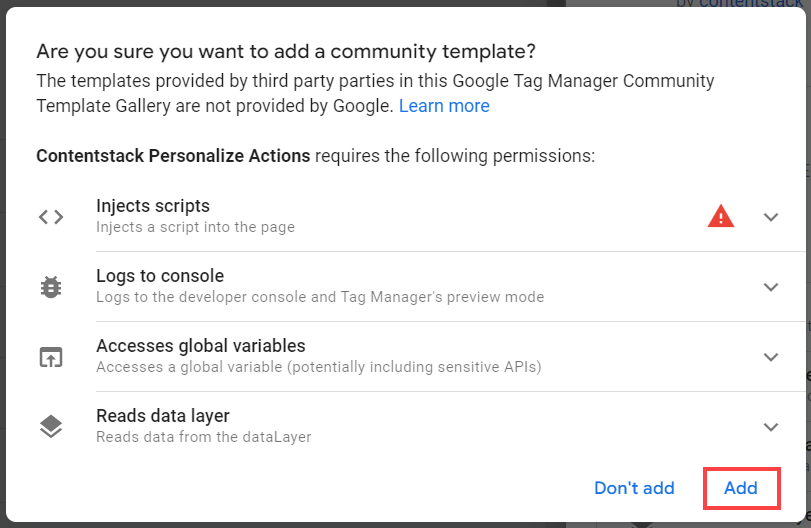 5. In the **Action Type** drop-down list, select **Initialize**. 6. Enter your **Personalize Project UID** fetched from the Projects **Settings** page. 7. The **Personalize SDK URL** will be prefilled. Unless you are hosting a version of the Personalize Edge SDK yourself, leave this field **unchanged**. 8. Enter your **Edge API URL**. By default, the AWS NA URL is added. You can choose to update this to the URL of other data centers and regions. 9. In the **Advanced Settings**, configure the **Tag Sequencing**. Tag Sequencing is used to specify tags to fire immediately before or after the current tag.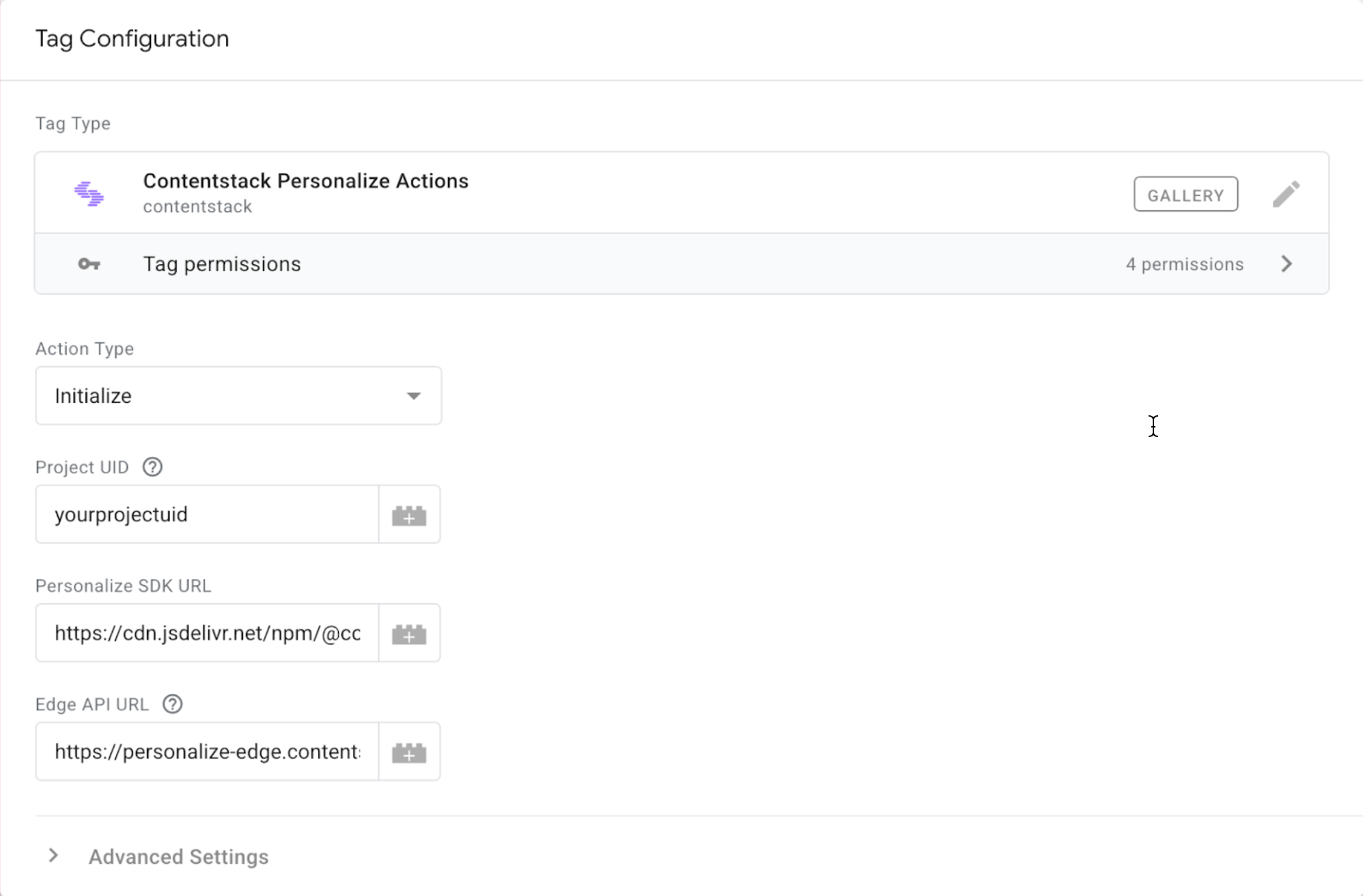 5. Click **Save**. ### Set up the tag for Trigger Impressions action Use the following steps to set up the tag for the **Trigger Impressions** action in GTM. 1. In the **Workspace** tab, click **Tags** to open the dashboard. 2. In the **Tags** section, click the **New** button to create a new tag. 3. Replace Untitled Tag with the name of your tag (for example, 'Headline Test Impression Tag'). 4. In the **Tag Configuration** section, 1. Click the **Choose a tag type to begin setup** area. 2. Click **Discover more tag types in the Community Template Gallery** to open the **Import Tag Template** page. 3. From the **Community Template Gallery**, search and select **Contentstack Personalize Actions** template. 4. In the **Action Type** drop-down list, select **Trigger Impressions**. 5. To add your Experiences Short UID, obtained from the **Experiences** landing page in Personalize, click the **Add Row** button and enter the Short UID in the **ShortUID** field and then click the **Add** button.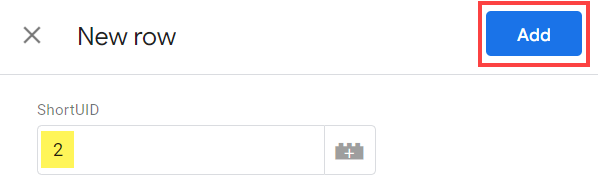 6. In the **Advanced Settings**, under **Tag firing options**, select **Once per page**. 7. Configure the **Tag Sequencing**. Tag Sequencing is used to specify tags to fire immediately before or after the current tag. Here, mark the checkbox for **Fire a tag before Headline Test Impression Tag fires**. 8. Click **Select tag** and select the previously created **Initialization tag** and mark the checkbox for **Don't fire Headline Test Impression Tag if Initialization Tag fails or is paused**.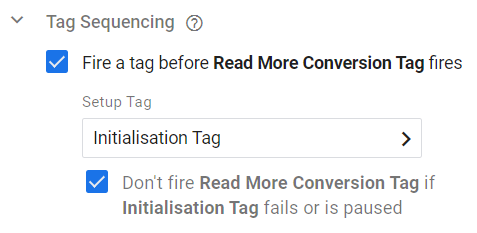 5. In the **Triggering** section, configure an event/trigger for which you want the tag to be executed. 1. Click the **Choose a trigger to make this tag fire** area.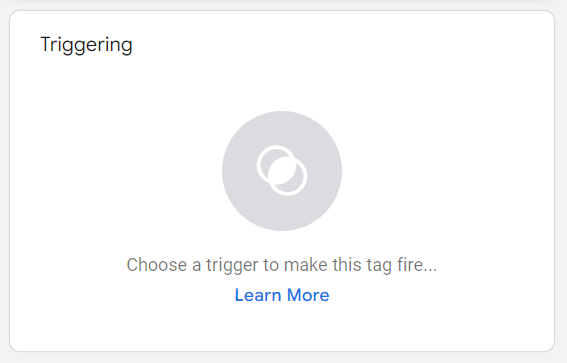 2. On the **Choose a trigger** modal, click the **New trigger** button. 3. Replace Untitled Trigger with the name of your trigger (for example, 'Home Page Trigger'). 4. In the **Trigger Configuration** section, 1. Click the **Choose a trigger type to begin setup** area. 2. Click the **Page View** trigger type. 3. Configure the trigger as shown in the screenshot below and then click the **Save** button to save the trigger configuration.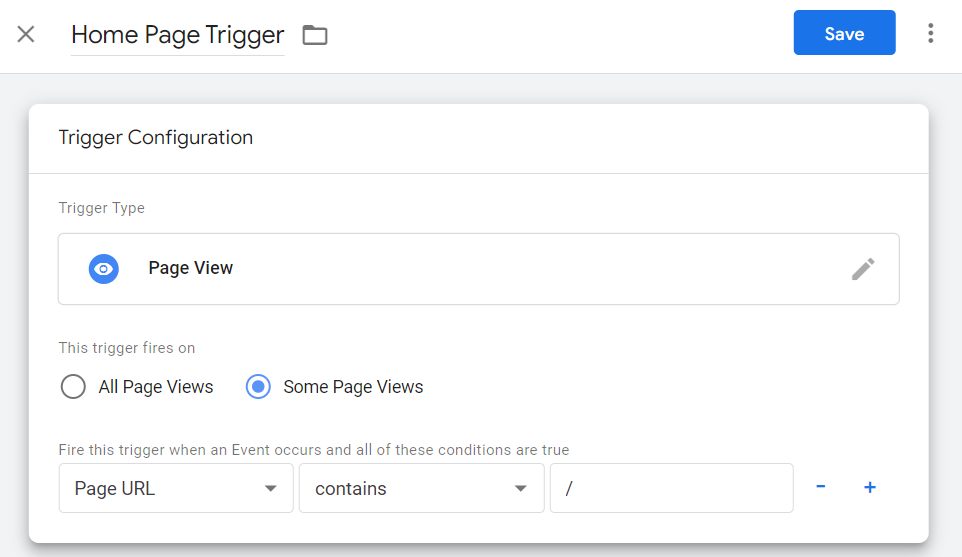 6. Click the **Save** button to save the tag configuration. ### Set up the tag for Trigger Event action Use the following steps to set up the tag for the **Trigger Event** action in GTM. 1. In the **Workspace** tab, click **Tags** to open the dashboard. 2. In the **Tags** section, click the **New** button to create a new tag. 3. Replace Untitled Tag with the name of your tag (for example, 'Read More Conversion Tag'). 4. In the **Tag Configuration** section, 1. Click the **Choose a tag type to begin setup** area. 2. Click **Discover more tag types in the Community Template Gallery** to open the **Import Tag Template** page. 3. From the **Community Template Gallery**, search and select **Contentstack Personalize Actions** template. 4. In the **Action Type** drop-down list, select **Trigger Event**. 5. To add your Event Key, obtained from the **Events** landing page in Personalize, click the **Event Key** field and enter the event key.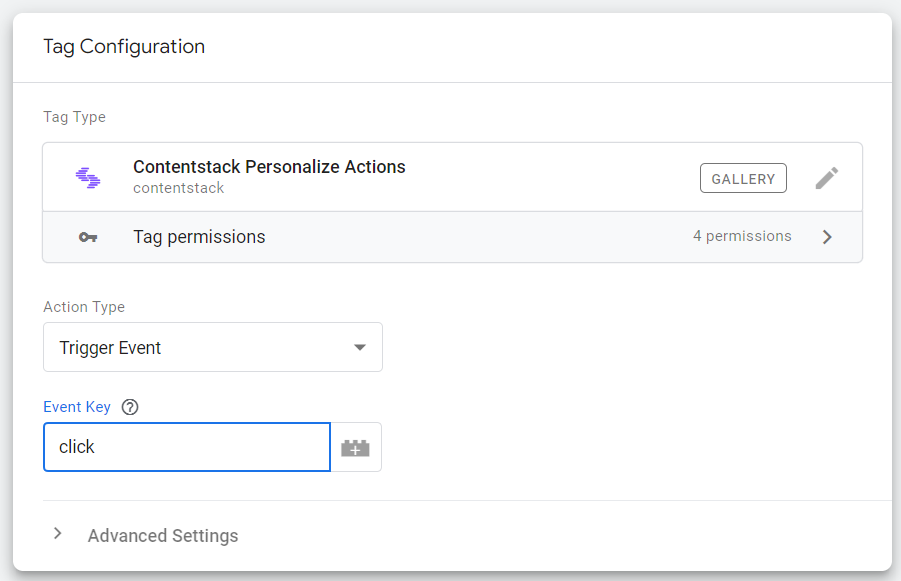 6. In the **Advanced Settings**, under **Tag firing options**, select **Once per event**. 7. Configure the **Tag Sequencing**. Tag Sequencing is used to specify tags to fire immediately before or after the current tag. Here mark the checkbox for **Fire a tag before Read More Conversion Tag fires**. 8. Click **Select tag** and select the previously created Initialization tag and mark the checkbox for **Don't fire Read More Conversion Tag if Initialization Tag fails or is paused**.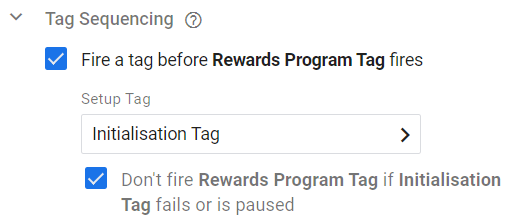 5. In the **Triggering** section, configure an event/trigger for which you want the tag to be executed. 1. Click the **Choose a trigger to make this tag fire** area. 2. On the **Choose a trigger** modal, click the **New trigger** button. 3. Replace Untitled Trigger with the name of your trigger (for example, 'Click - Read More’'). 4. In the **Trigger Configuration** section, 1. Click the **Choose a trigger type to begin setup** area. 2. In the **Choose trigger type** modal under the **Click** section, click the **All Elements** trigger type. 3. Configure the trigger as follows: **This trigger fires on**: Select **Some Clicks**. 4. For the conditions, click the first drop-down list field and select **Choose Built-In Variable > Click ID**. Select the **equals** operator and then enter **read-more** for the criteria.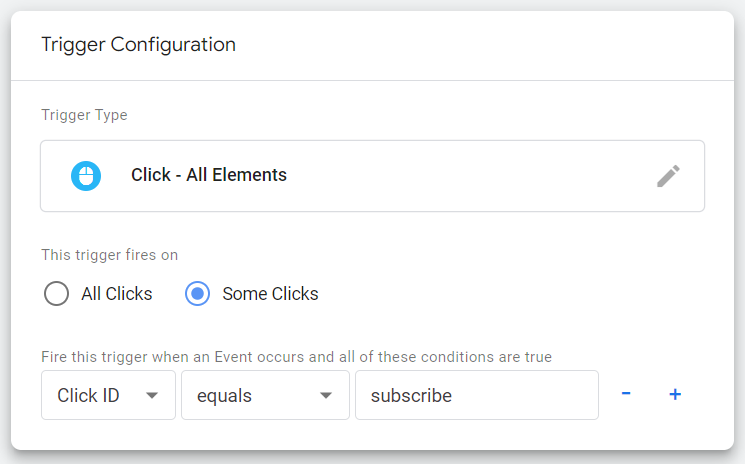 5. Then click the **Save** button to save the trigger configuration. 6. Click the **Save** button to save the tag configuration. This adds your tag for the **Trigger Event** action in GTM. ### Set up the tag for Set UserId action Use the following steps to set up the tag for the **Set UserId** action in GTM. 1. In the **Workspace** tab, click **Tags** to open the dashboard. 2. In the **Tags** section, click the **New** button to create a new tag. 3. Replace Untitled Tag with the name of your tag (for example, 'Set UserId Tag'). 4. In the **Tag Configuration** section, 1. Click the **Choose a tag type to begin setup** area. 2. Click **Discover more tag types in the Community Template Gallery** to open the **Import Tag Template** page. 3. From the **Community Template Gallery**, search and select **Contentstack Personalize Actions** template. 4. In the **Action Type** drop-down list, select **Set UserId**. 5. Mark the checkbox for **Preserve User Attributes**.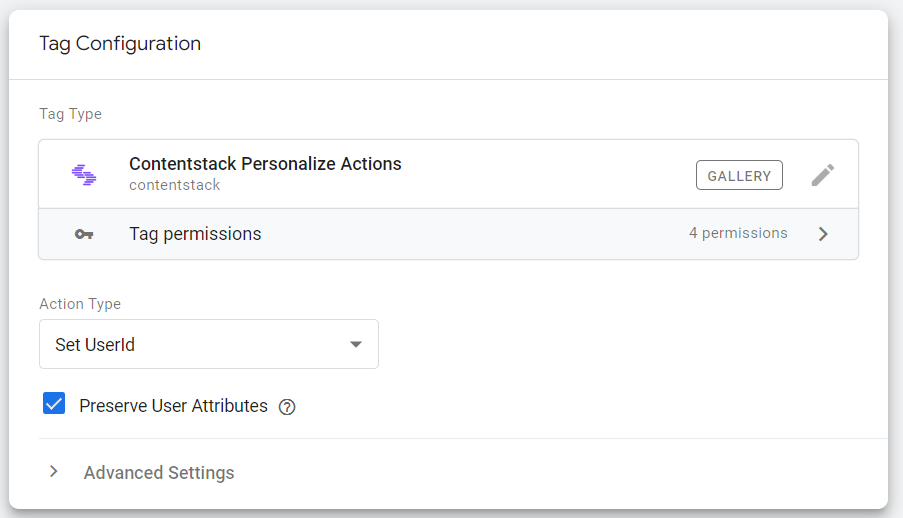 6. In the **Advanced Settings**, under **Tag firing options**, select **Once per event**. 7. Configure the **Tag Sequencing**. Tag Sequencing is used to specify tags to fire immediately before or after the current tag. Here mark the checkbox for **Fire a tag before Set UserId Tag fires**. 5. Click **Select tag** and select the previously created **Initialization tag** and mark the checkbox for **Don't fire Set UserId Tag if Initialization Tag fails or is paused**.img src="https://images.contentstack.io/v3/assets/blt2d43f51baca745a8/blt18969151adecbc45/69c3e38816a1f889281c682c/Don\_t\_Fire\_Set\_User\_ID\_Tag.png" alt="Don\_t\_Fire\_Set\_User\_ID\_Tag.png" height="auto" /> 6. In the **Triggering** section, configure an event/trigger for which you want the tag to be executed. 1. Click the **Choose a trigger to make this tag fire** area. 2. On the **Choose a trigger** modal, click the **New trigger** button. 3. Replace Untitled Trigger with the name of your trigger (for example, 'LoggedInEventTrigger'). 4. In the **Trigger Configuration** section, 1. Click the **Choose a trigger type to begin setup** area. 2. In the **Choose trigger type** modal under the **Other** section, click the **Custom Event** trigger type. 3. Enter ***is\_logged\_in*** in the **Event name** field.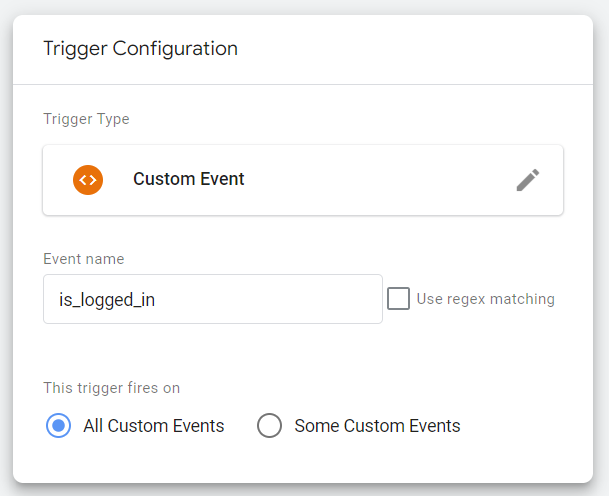 4. Then click the **Save** button to save the trigger configuration. 7. Click the **Save** button to save the tag configuration. This adds your tag for the **Set UserId** action in GTM. ### Set up the tag for Set Attributes action Use the following steps to set up the tag for the Set Attributes action in GTM. 1. In the **Workspace** tab, click **Tags** to open the dashboard. 2. In the **Tags** section, click the **New** button to create a new tag. 3. Replace Untitled Tag with the name of your tag (for example, 'Rewards Program Tag'). 4. In the **Tag Configuration** section, 1. Click the **Choose a tag type to begin setup** area. 2. Click **Discover more tag types in the Community Template Gallery** to open the **Import Tag Template** page. 3. From the **Community Template Gallery**, search and select **Contentstack Personalize Actions** template. 4. In the **Action Type** drop-down list, select **Set Attributes**. 5. In the **Attributes** field, define the key-value pairs to set. The keys should match an attribute key you have defined in the personalize project. 6. In the **Advanced Settings**, under **Tag firing options**, select **Once per event**. 7. Configure the **Tag Sequencing**. Tag Sequencing is used to specify tags to fire immediately before or after the current tag. Here mark the checkbox for **Fire a tag before Rewards Program Tag fires**. 8. Click **Select tag** and select the previously created **Initialization tag** and mark the checkbox for **Don't fire Rewards Program Tag if Initialization Tag fails or is paused**. 5. In the **Triggering** section, configure an event/trigger for which you want the tag to be executed. 1. Click the **Choose a trigger to make this tag fire** area. 2. On the **Choose a trigger** modal, click the **New trigger** button. 3. Replace Untitled Trigger with the name of your trigger (for example, 'Subscribe Trigger'). 4. In the **Trigger Configuration** section, 1. Click the **Choose a trigger type to begin setup** area. 2. In the **Choose trigger type** modal under the **Click** section, click the **All Elements** trigger type. 3. Configure the trigger as follows: **This trigger fires on**: Select **Some Clicks**. 4. For the conditions, click the first drop-down list field and select **Choose Built-In Variable > Click ID**. Select the **equals** operator and then enter **subscribe** for the criteria. 5. Then click the **Save** button to save the trigger configuration. 6. Click the **Save** button to save the tag configuration. 3. ## Preview and Publish your GTM Tags After setting up your GTM Tags, you can preview and test your container configuration before publishing. Google Tag Manager’s preview and debug mode lets you test a container configuration on a site before publishing. It connects to Tag Assistant, allowing you to see which tags fired and their order. Please refer to the official GTM documentation for more information on [Preview and Debug Mode](https://support.google.com/tagmanager/answer/6107056). After previewing and ensuring everything is working as expected, navigate back to your **Workspace** where we created the **Container** and then click the **Submit** button to publish a container with the tags you created. 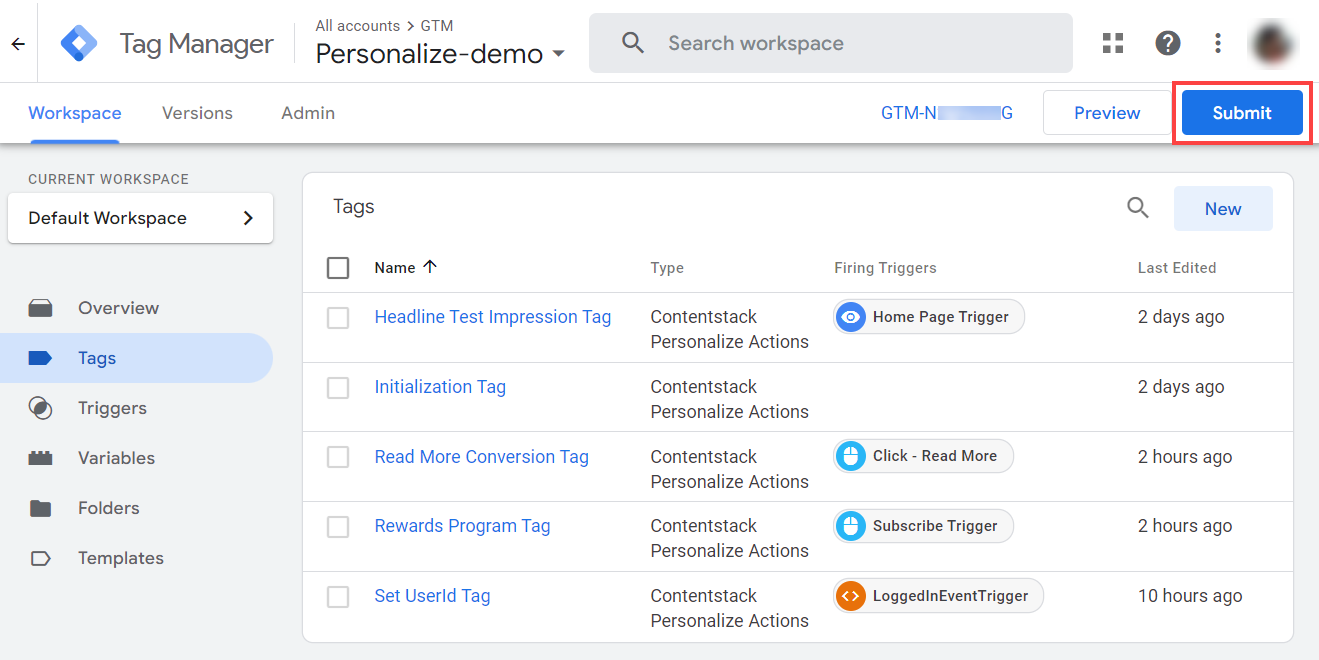 This completes the set up for the GTM integration for Personalize. **Additional Resource**: For more information on the Publishing, versions, and approvals, please refer to the official GTM [documentation](https://support.google.com/tagmanager/answer/6107163). 4. ## Troubleshooting **Common Issues** 1. **Tags Not Firing**: Ensure that triggers are correctly set up and that your conditions are properly defined. 2. **Data Not Sent to Personalize**: Double-check API keys and ensure that all required fields are correctly configured. **Debugging Tips** * Use GTM’s “Preview” mode to test tags in real-time and ensure they are fired as expected. * Check your browser’s developer console for any error messages related to the tag execution. * Check your browser’s developer console for network calls via the Network tab in Google Chrome (**Inspect Element** > **Network**) for any error messages related to the tag execution. The following network call shows the user attributes being set on the edge API from GTM: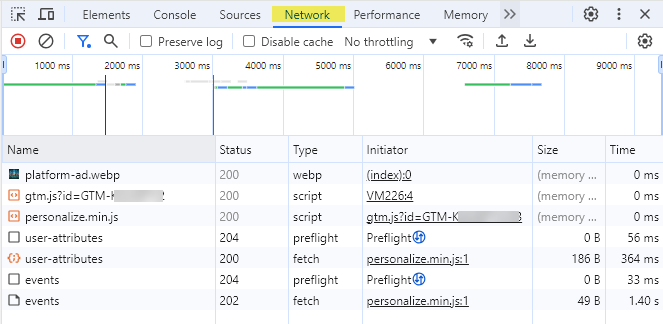 For further assistance, refer to the [Google Tag Manager documentation](https://tagmanager.google.com/gallery/#/owners/contentstack/templates/personalize-actions-gtm-template) or contact support. ### Reference Project You can refer to the following project for a reference implementation: